
Meta Pixel Helper shows a red warning. Events Manager reports zero Purchase events in the last 24 hours. Your Shopify dashboard shows eight orders — but Ads Manager attributes none of them to your campaigns.
That is not a campaign problem. It is a pixel failure — and "not working" covers three different break patterns that require different fixes. Reinstalling the base code without diagnosing the layer that failed wastes an hour and fixes nothing.
This guide shows how to fix a Facebook Pixel not working in 2026: triage the symptom in five minutes, walk the 4-Layer Pixel Debug Stack, and restore accurate event tracking before you touch budget or creative.
People also search for this topic:
- why is my facebook pixel not firing
- meta pixel not showing in events manager
- shopify facebook pixel not working
- facebook pixel not tracking purchases
What Is Pixel Failure?
Facebook Pixel failure is any break in the chain from your website to Meta's Events Manager — the Pixel code is missing, events do not fire in the browser, Meta never receives the payload, or the data arrives corrupted or duplicated.
It is not the same as "no conversions." A pixel can fire perfectly while your landing page, offer, or checkout fails to convert — that is a funnel problem covered in Facebook ads getting no conversions. Pixel failure means the measurement pipe is broken before optimization even has data to learn from.
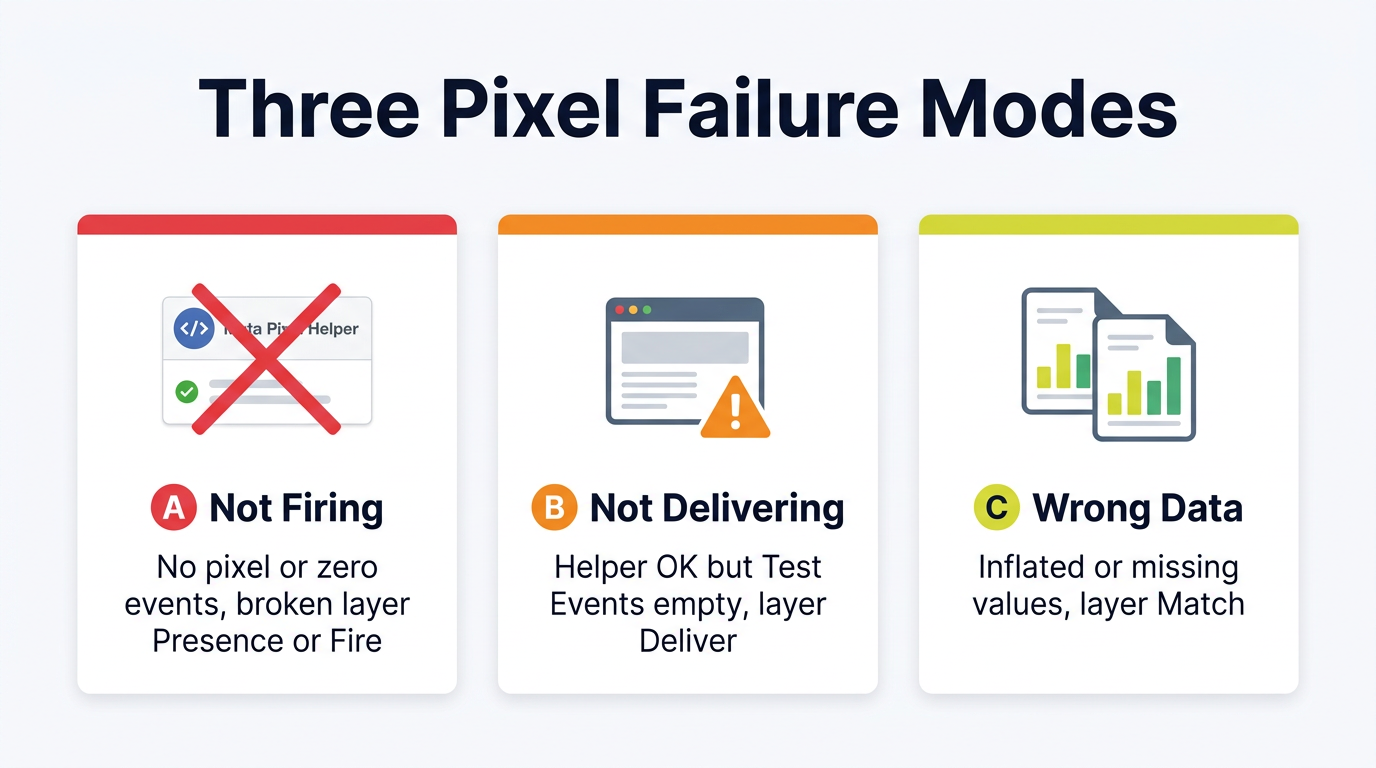
Most advertisers collapse three distinct failures into one label. Separating them saves hours of misdirected fixes:
| Failure mode | What you see | Broken layer |
|---|---|---|
| A — Not firing | Pixel Helper shows no pixel, or pixel found with zero events | Presence or Fire |
| B — Not delivering | Helper shows events locally, Test Events tab stays empty | Deliver |
| C — Wrong data | Events appear but counts are inflated, missing value, or duplicated | Match |
Mode A is an installation or JavaScript problem. Mode B is an account linkage or domain configuration problem. Mode C is a parameter or deduplication problem. Treating all three as "reinstall the pixel" is why the same fix guide gets bookmarked twice and nothing changes.
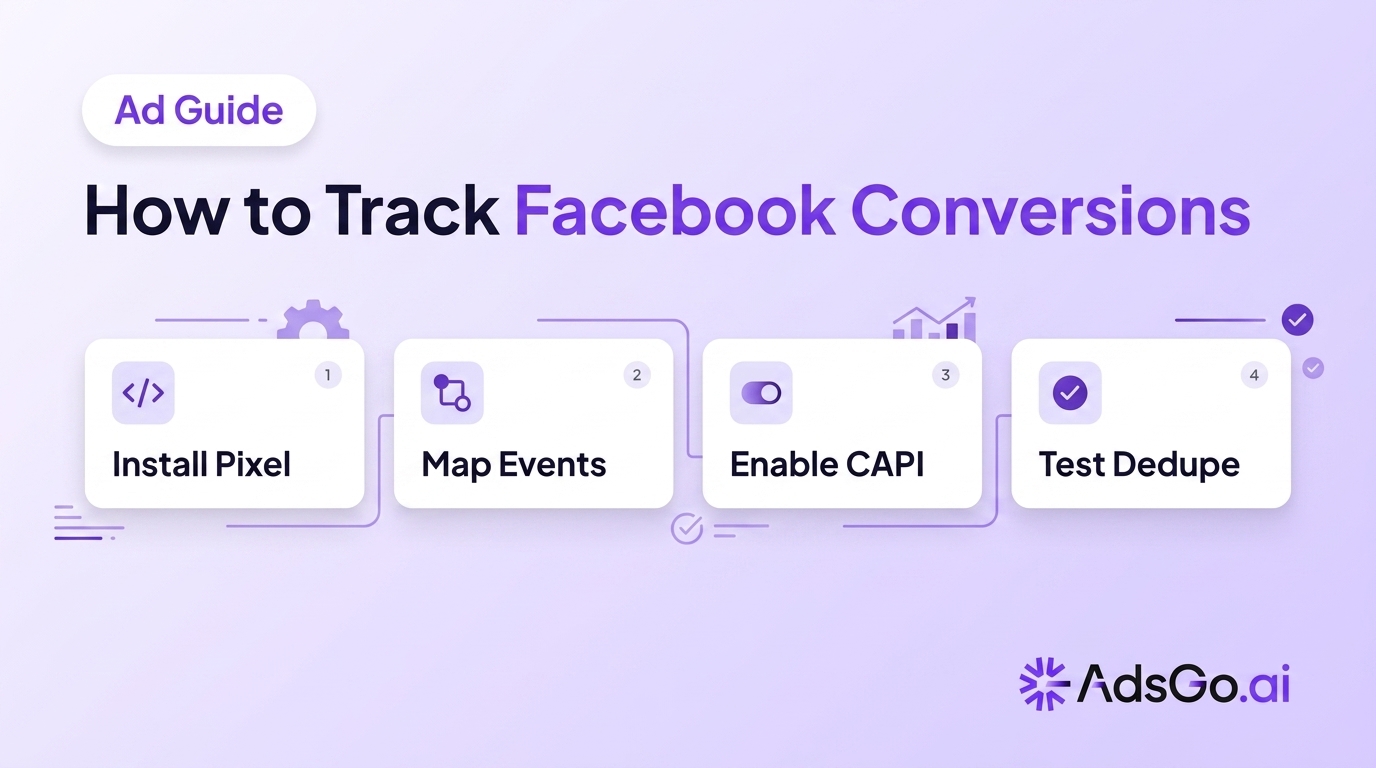
If you have not installed Pixel and Conversions API yet, start with how to track Facebook Ads conversions — this article assumes code exists somewhere and focuses on why it stopped working.
Pixel firing but data still missing?
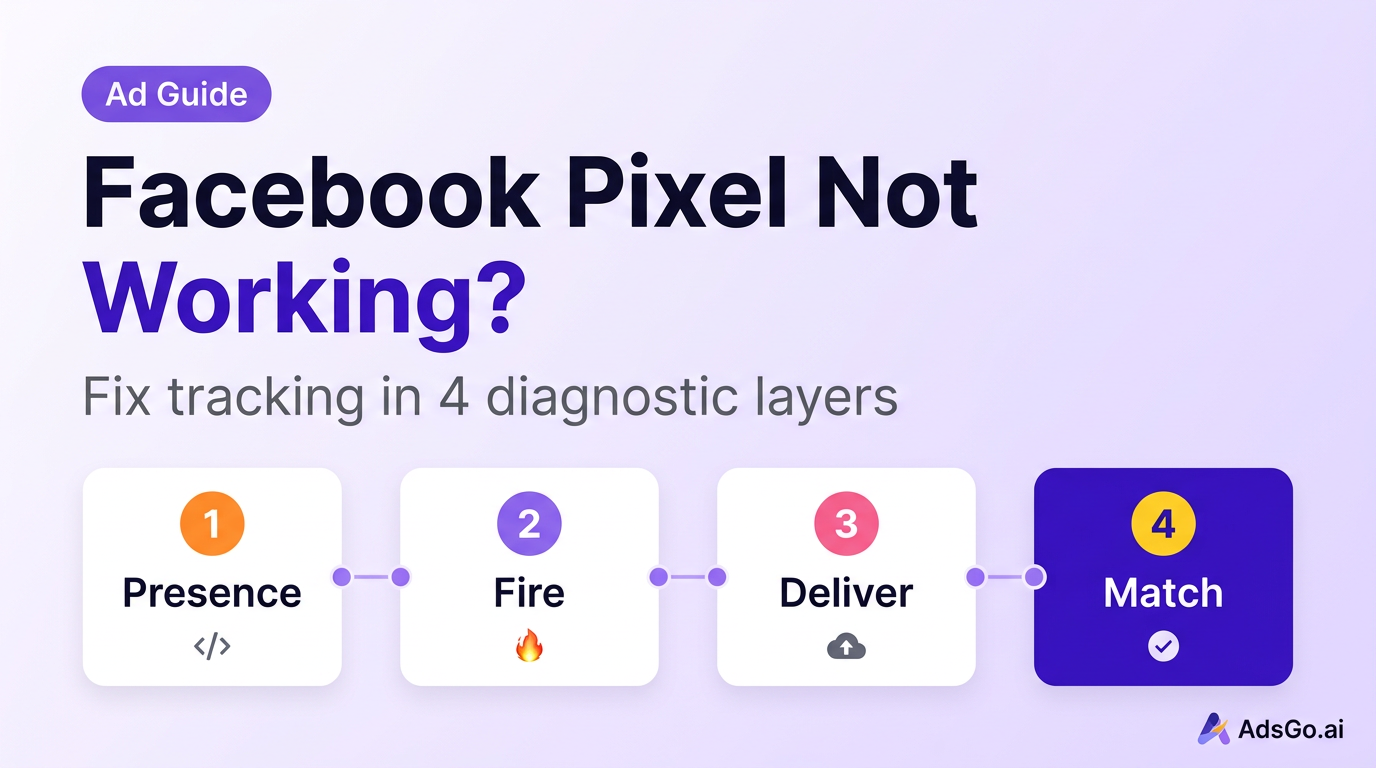
The 4-Layer Debug Stack
Random troubleshooting — check Helper, reinstall code, wait 24 hours, check again — produces random results. The 4-Layer Pixel Debug Stack sequences checks so each layer must pass before you move to the next.
| Layer | Question | Primary tool | Pass signal |
|---|---|---|---|
| 1 — Presence | Is the pixel code on this page? | View source / Pixel Helper | Helper detects your Pixel ID |
| 2 — Fire | Does the browser trigger events? | Pixel Helper + DevTools console | PageView + conversion events show in Helper |
| 3 — Deliver | Does Meta receive the payload? | Events Manager → Test Events | Same events appear in real-time feed |
| 4 — Match | Is the data accurate and deduplicated? | Diagnostics tab + event parameters | Correct value/currency; no duplicate inflation |
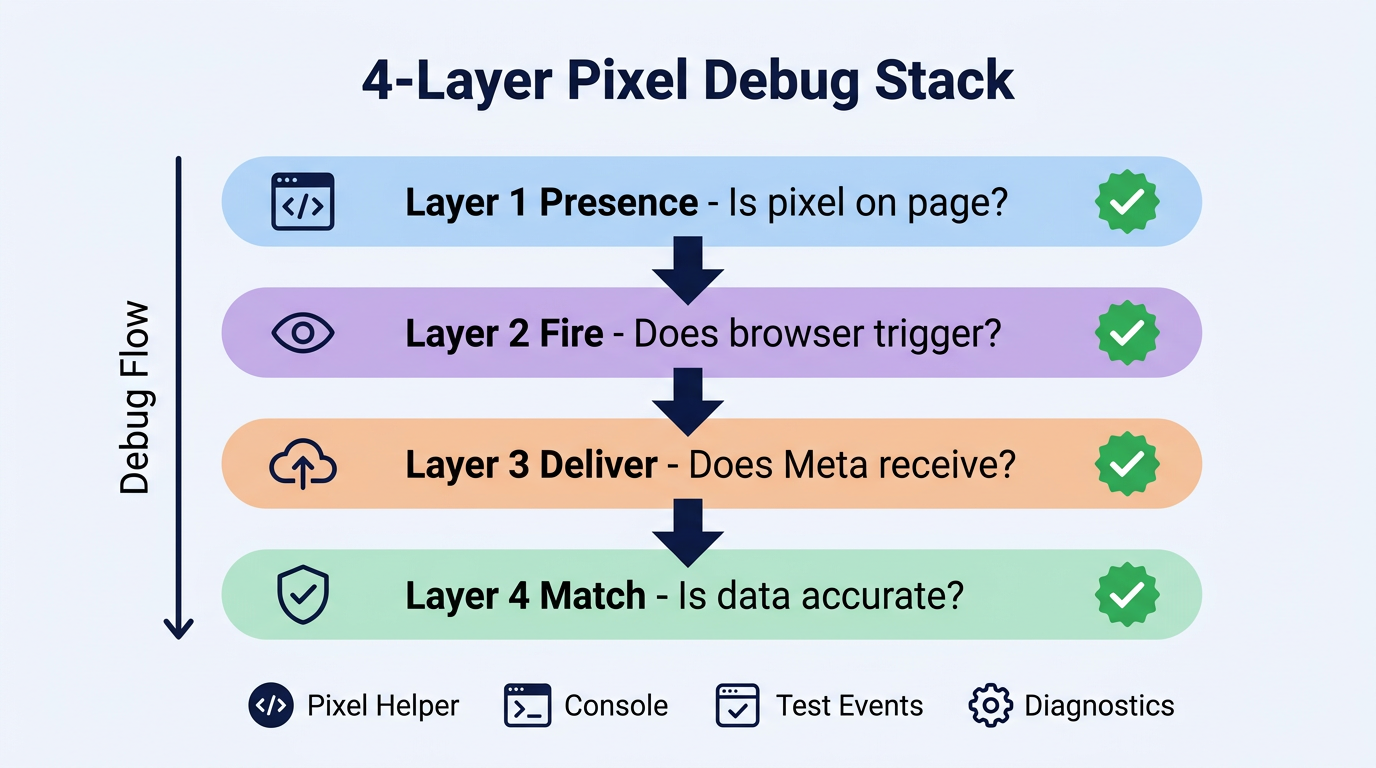
Layer 1 failing means the snippet never loaded — wrong template, GTM not published, or consent blocked the script entirely. Layer 2 failing means JavaScript broke mid-page: syntax errors, plugin conflicts, or a consent manager withholding fbq until click. Layer 3 failing means Meta's servers never got the event — wrong Pixel ID, pixel connected to a personal ad account while you watch a Business Manager dataset, or domain not verified for Aggregated Event Measurement. Layer 4 failing means events arrive but cannot be trusted — missing event_id between Pixel and CAPI, Purchase events without value and currency, or the same pixel firing twice on one page load.
Work top to bottom. Skipping Layer 1 to debug deduplication in Layer 4 is the most common waste of time in pixel audits.
Five-Minute Triage Steps
Before opening theme files or calling a developer, run this five-minute triage on the exact page where tracking fails — usually checkout confirmation or thank-you page, not the homepage.
Step 1 — Install Meta Pixel Helper
Install the Chrome extension. Open the affected URL in an incognito window. Accept the cookie banner if your site uses one — many pixels never load until consent is granted (Source: Meta Pixel Helper documentation, 2025).
Step 2 — Read Helper output
| Helper result | Failure mode | Go to layer |
|---|---|---|
| No pixel found | A — Not firing | Layer 1 |
| Pixel found, no events | A — Not firing | Layer 2 |
| Events listed locally | Check Step 3 | Layer 2 or 3 |
| Multiple pixels same ID | C — Wrong data | Layer 4 |
| Yellow/red warnings on parameters | C — Wrong data | Layer 4 |
Step 3 — Open Events Manager Test Events
Enter your site URL, browse in a second window, complete a test action (add to cart, submit lead form). Return to Test Events within 60 seconds.
| Helper | Test Events | Failure mode |
|---|---|---|
| Events show | Events show | Tracking works — check attribution window or campaign filters |
| Events show | Nothing appears | B — Not delivering (Layer 3) |
| Nothing | Nothing | A — Not firing (Layer 1–2) |
Step 4 — Check Diagnostics tab
Open Events Manager for Meta-flagged issues: deduplication failures, unverified domain, missing event parameters. Meta runs automated checks daily — this tab surfaces problems in plain language that Helper cannot see.
Step 5 — Route to the fix section
Use your failure mode from Steps 2–3 to jump to the matching layer below. Do not proceed to Layer 4 fixes if Layer 1 has not passed.
Fix Each Failure Layer
Each layer has a short list of high-frequency causes. Fix in order — do not stack changes without retesting between each one.
Layer 1 — Presence fixes
The base pixel snippet must appear in the rendered HTML of every page in your funnel, including checkout and confirmation pages.
| Cause | Fix |
|---|---|
| Pixel never installed | Add base code to site header or connect via platform integration (Shopify Customer Events, WordPress plugin) |
| GTM container not published | Open Tag Manager → Submit → Publish the container with the pixel tag |
| Wrong page template | Verify pixel on product, cart, checkout, and thank-you URLs individually — not just homepage |
| Consent manager blocks script | Configure consent tool to fire pixel on "analytics accepted" or move conversion tracking to CAPI |
Search page source for fbq or your 15-digit Pixel ID. If neither appears in rendered HTML, Helper will never find anything — no amount of Events Manager configuration fixes a missing script.
Layer 2 — Fire fixes
The pixel loads but events do not trigger. Open DevTools (F12) → Console tab and reload the page. Look for JavaScript errors mentioning fbq, blocked scripts, or conflicts with other tracking tools.
| Cause | Fix |
|---|---|
Duplicate fbq initialization |
Remove extra pixel snippets — one base install only; check theme + app + GTM for duplicates |
| Custom event syntax error | One malformed fbq('track', ...) call can break all subsequent events on the page |
| Cookie consent not accepted | Test in incognito after clicking "Accept all" on banner |
| Event trigger scoped wrong (GTM) | Confirm conversion tags fire on correct trigger — purchase tag on order confirmation URL only |
| Ad blocker during testing | Disable ad blockers or test in clean browser profile |
For click-triggered events (AddToCart buttons, AJAX carts), Pixel Helper may miss them on page load. Use Test Events while performing the action — Helper alone is not sufficient for dynamic events (Source: Meta Business Help Center, 2025).
Layer 3 — Deliver fixes
Helper shows events but Test Events does not. The browser fired correctly — Meta's ingestion failed or routed to the wrong dataset.
| Cause | Fix |
|---|---|
| Pixel ID mismatch | Confirm the ID in your site code matches the dataset you monitor in Events Manager |
| Personal vs Business ad account | Reconnect integration using the correct Business Manager account and ad account |
| Domain not verified | Business Settings → Brand Safety → Domains → verify via meta tag or DNS |
| AEM not configured | Set and prioritize conversion events for iOS traffic after domain verification |
| Events blocked by Meta policy | Check Diagnostics for flagged parameters — raw email/phone in payload must be hashed |
Allow 5–20 minutes for Test Events to reflect browser fires. If still empty after 30 minutes with a verified ID, disconnect and reconnect the platform integration rather than adding a second pixel snippet.
Layer 4 — Match fixes
Events arrive but data is wrong — inflated counts, missing purchase values, or CAPI and Pixel both counting without deduplication.
| Cause | Fix |
|---|---|
| Duplicate pixel installations | Remove all but one firing path; one pixel ID, one initialization |
| Missing Purchase parameters | Every Purchase event needs value and currency — empty fields break ROAS reporting |
No event_id deduplication |
Send identical event_id from Pixel and CAPI for the same conversion within 48 hours |
| Event name case mismatch | Purchase and purchase do not deduplicate — standardize casing across Pixel and CAPI |
| Attribution window filter | Ads Manager set to 1-day view while you expect 7-day click — data exists but filtered out |
After Layer 4 fixes, run one test purchase and confirm Test Events shows the correct value, currency, and content IDs. Then compare 7-day event volume in Events Manager against your backend order count — a gap under 15% is acceptable for browser-only setups; larger gaps indicate Layer 3 or CAPI backup is still needed (Source: Meta advertiser documentation, 2025).
Shopify Pixel Quick Fixes
Shopify stores account for a disproportionate share of pixel support tickets because three independent systems can each inject tracking: the Facebook & Instagram sales channel, Customer Events, and manual code in theme.liquid.
Run the five-minute triage first. Then check these Shopify-specific failure points:
Facebook and Instagram app Pixel ID mismatch
The most common Shopify pixel issue: the F&I app sends events to a personal-ad-account pixel from two years ago while the agency monitors a Business Manager dataset. Events Manager on the business pixel shows zero because the pipe was never pointed at it. Fix: disconnect F&I app → reconnect with correct Business Manager login → confirm Pixel ID matches Events Manager exactly.
Customer Events vs manual theme code
Shopify's native Customer Events integration replaces legacy Additional Scripts. If both are active, the pixel fires twice — inflating counts and breaking deduplication. Fix: Shopify Admin → Settings → Customer Events → confirm single Meta connection; remove manual fbq snippets from theme.liquid if Customer Events handles it.
Leftover code in theme files
Search Online Store → Themes → Edit Code for fbq, fbevents, or your Pixel ID. Remove orphaned snippets from theme.liquid, checkout.liquid, and snippet files. One clean install beats three partial ones.
Checkout and order status pages
Purchase events must fire on the order confirmation page. Legacy "Additional Scripts" in checkout settings still exists on some stores — conflicting code here causes "PageView everywhere, Purchase nowhere" patterns.
Enhanced data sharing and CAPI
Enable Maximum data sharing in the F&I app to activate server-side events. Browser-only tracking misses 20–35% of conversions on typical ecommerce stores (Source: Meta advertiser documentation, 2025). For full CAPI + deduplication setup, see how to track Facebook Ads conversions.
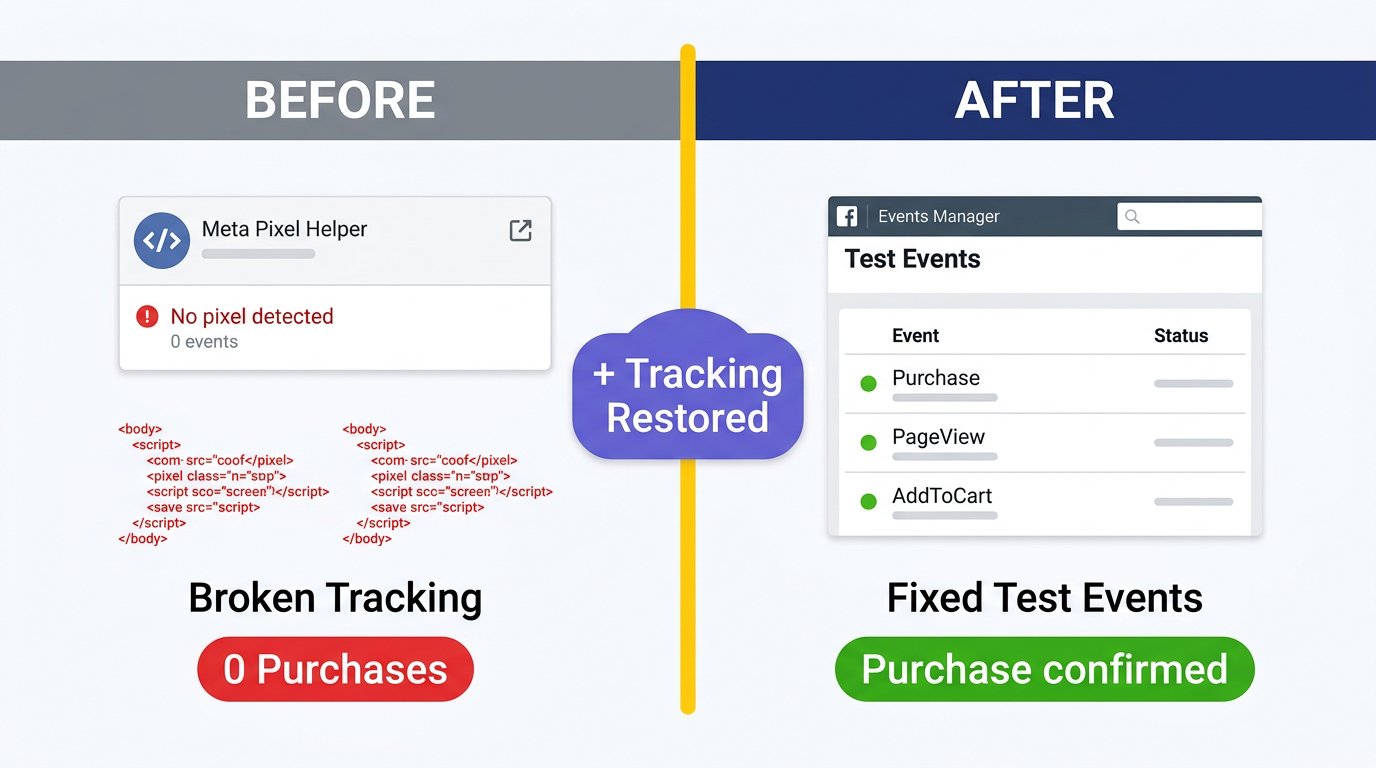
After fixes, complete a real test order (refund immediately if needed) and verify Purchase appears in Test Events with correct value and currency before scaling spend.
FAQ
Why is my Facebook pixel not firing?
The pixel is not firing when the base code is missing from the page, blocked by a consent banner, broken by a JavaScript error, or duplicated so badly that initialization fails. Start with Pixel Helper on the exact URL where the event should fire — not the homepage. No pixel detected means Layer 1 (Presence); pixel detected with zero events means Layer 2 (Fire).
How do I know if my Meta pixel is working?
Open Meta Pixel Helper on your site — blue icon with event count means the browser side works. Then open Events Manager → Test Events, perform an action on your site, and confirm the same event appears in the real-time feed within 60 seconds. Both checks passing means the pixel is working end to end.
Why is my pixel not showing in Events Manager?
Usually a Pixel ID mismatch — your site sends events to ID 123456789 while you watch dataset 987654321 in Events Manager. Less commonly: domain not verified, wrong ad account connected, or events filtered by attribution window settings in Ads Manager. Compare the ID in Helper against the ID at the top of your Events Manager dataset.
Why is my Shopify Facebook pixel not working?
The top three Shopify causes: F&I app connected to the wrong Pixel ID, duplicate pixel from both Customer Events and manual theme code, and Purchase event not configured on the order confirmation page. Disconnect and reconnect the F&I app with the correct Business Manager account before editing theme files.
Do I need CAPI if my pixel is broken?
Fix the browser pixel first — CAPI does not replace a missing base installation. Once Layer 1–3 pass, add Conversions API as a backup signal. CAPI captures conversions when ad blockers or iOS privacy settings prevent browser firing, recovering an estimated 15–30% of otherwise lost events (Source: Meta internal advertiser data, 2025).
How long until pixel data appears in Ads Manager?
Test Events shows data within seconds to minutes. Standard Events Manager reporting updates within 15–30 minutes. Ads Manager campaign columns may lag 1–3 hours. Do not judge a fix on 24-hour data until at least one full test conversion has passed through Test Events.
How AI Monitors Tracking
The 4-Layer Pixel Debug Stack fixes the installation. It does not prevent the next silent break — a theme update, a new consent app, or a platform change that drops Purchase events without a notification.
Monitoring tools that compare backend order volume against Meta-reported conversions catch Layer 3 and Layer 4 failures before they distort ROAS for a full week. The workflow: set a weekly reconciliation check (orders vs. Events Manager Purchase count), alert when the gap exceeds 15%, then run triage on the failing layer.
AdsGo Ad Insight surfaces attribution and performance gaps across campaigns — so you notice when reported conversions diverge from expected volume without manually opening Events Manager every morning. AI Optimization adjusts budget toward campaigns running on cleaner signals once tracking is restored.
Fix the pixel with the stack first. Automate the monitoring second. That is how you stop repeating the same five-minute triage every month.